


GA4 ecommerce analytics is useful only when recorded events match what happened in the store. This guide follows a purchase from the order system through a data layer and Google Tag Manager into reporting, then checks amounts, duplicate sends and consent behavior. It includes a fictional purchase example and a validation worksheet. The instructions concern an online store you control; visits or outbound clicks to a marketplace do not reveal purchases inside that marketplace.
- Why Ecommerce Analytics Matters
- Understanding Google Analytics 4 for Ecommerce
- Setting Up Google Analytics 4 Ecommerce Tracking
- Key Ecommerce Events to Track in GA4
- Analyzing Ecommerce Data in GA4
- Leveraging Ecommerce Analytics for Growth
- Challenges and Limitations of GA4 Ecommerce Tracking
- Best Practices for Ecommerce Analytics
- Conclusion
Why Ecommerce Analytics Matters
Ecommerce analytics involves collecting, analyzing, and interpreting data from online stores to understand customer interactions, optimize marketing campaigns, and boost conversions. Unlike traditional retail, where in-store observations guide decisions, ecommerce relies on digital tools to track metrics like product views, add-to-cart actions, checkout behavior, and purchases. These insights enable businesses to tailor their strategies to meet customer needs and market demands.
Start with a business question and a measurable outcome: where do shoppers leave checkout, which items sell, and which campaigns bring confirmed orders? Do not assume that installing a tag improves retention or revenue. Document the event definitions first, then check the captured data against the order system. For the broader distinction between visits and outcomes, see our website traffic measurement guide.
Understanding Google Analytics 4 for Ecommerce
Google Analytics 4 (GA4) records events from configured websites and apps. Its reports describe the activity that the implementation can collect; they are not a complete ledger of every customer interaction. Keep these distinctions in mind:
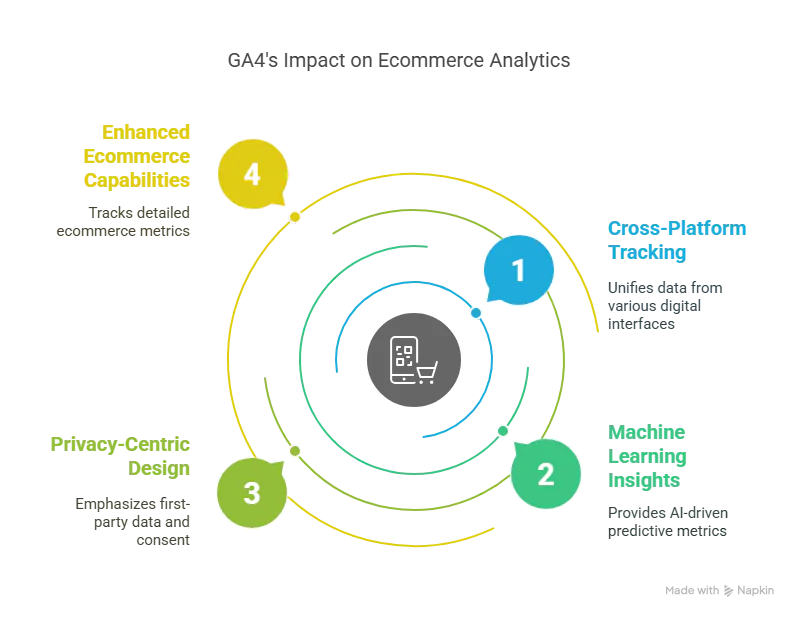
- Cross-platform scope: website and app streams need deliberate implementation and consistent identity handling. Do not infer a complete cross-device journey from unrelated visits.
- Predictive features: availability depends on data volume and model quality. Check your property’s predictive-metric eligibility before planning a campaign around predictions.
- Consent controls: configure and test the consent solution separately. Installing GA4 does not by itself establish that the site’s collection choices are correct.
- Ecommerce events: item, checkout, purchase and refund information must come from a working ecommerce implementation.
Treat the implementation as a chain: confirmed store action → structured event → configured tag → received event → reconciled report. Check each connection instead of assuming that a populated data layer proves successful measurement.
Setting Up Google Analytics 4 Ecommerce Tracking
The example below uses Google Tag Manager (GTM). A direct Google tag implementation is another option; do not install both paths to send the same purchase. First inventory any existing platform or plugin integration and choose one owner for each event.
Implementation sequence: property and stream → Google tag and consent setup → confirmed store event → GA4 event tag → validation and reconciliation.
Step 1: Create a GA4 Property
- Sign Up for Google Analytics: Visit analytics.google.com and create a Google Analytics account if you don’t already have one.
- Set Up a Property: use the intended existing GA4 property, or create one if needed. Confirm its time zone and reporting currency before comparing daily figures with store exports.
- Create a Data Stream: Under “Admin” > “Data Streams,” add a web stream for your website. Copy the measurement ID (e.g., G-XXXXXXX) for later use.
Step 2: Install GA4 Tracking Code
You can install the GA4 tracking code directly on your website or use Google Tag Manager for easier management. Here’s how to do it with GTM:
-
Set Up Google Tag Manager: Create a GTM account at tagmanager.google.com and add the GTM container code to your website’s
<head>and<body>sections. - Configure the Google tag: use the current Google tag setup in Tag Manager with the intended GA4 destination. It replaces the older GA4 Configuration tag. Review existing tags before adding another, and ensure the consent defaults are established before measurement executes.
- Preview before publishing: check the destination, consent sequence and page-view ownership in a test environment. Publish the reviewed container version only after the validation steps below pass.
Step 3: Configure the Data Layer for Ecommerce GA4
The data layer is the structured handoff between your store and its tags. A dataLayer.push() adds information for GTM to process; it does not send a GA4 event without a matching configured tag. Populate it from the confirmed order, not from the amount displayed in a button or an unverified URL parameter.
Example Data Layer for a Purchase Event
Copied!// Fictional example: use only in a test environment. window.dataLayer = window.dataLayer || []; window.dataLayer.push({ ecommerce: null }); window.dataLayer.push({ event: 'purchase', ecommerce: { transaction_id: 'DEMO-ORDER-001', value: 99.98, currency: 'USD', items: [{ item_id: 'DEMO-SHIRT-BLUE', item_name: 'Demo Blue T-Shirt', item_category: 'Apparel', price: 49.99, quantity: 2 }] } });
This is a fictional test payload, not a live order or a complete production integration. Two units at USD 49.99 total USD 99.98; tax and shipping are separate from the item value. In production, use a unique, stable order identifier and send only after confirmation. See the purchase parameter definition.
Implementing the Data Layer
- Manual implementation: populate the event from a confirmed order response. Use the real stable order identifier in production and avoid a second send on reload, payment return or retry. A purchase button click alone is not confirmation.
- Platform integration: inspect what your commerce platform already sends before adding a plugin or custom code. Keep one responsible implementation for each event and document who maintains it.
- Validate both sides: inspect the data-layer event and tag in GTM Preview, then the received event in GA4 DebugView. Check the values and destination, not just whether a tag fired.
Step 4: Configure Ecommerce Event Tags
GA4 ecommerce measurement uses explicit events. There is no Enhanced Measurement “Ecommerce” checkbox. Enhanced Measurement covers other interactions such as scrolling, outbound clicks and file downloads.
- Choose the event owner: establish whether the platform integration or GTM sends ecommerce events. Do not add a second sender for an event that is already implemented.
-
Connect the purchase event: in a Google Analytics: GA4 Event tag, use
purchaseas the event name and the intended GA4 destination. Enable Send Ecommerce data with Data Layer as its source. Attach a Custom Event trigger matchingpurchase. Follow the Google ecommerce implementation reference for the corresponding configuration of other events. -
Review key events: GA4 uses the term key event for important measured actions;
purchaseis a default key event. Treat cart additions and checkout starts as funnel steps rather than completed sales. Google Ads conversion setup is a separate decision.
Step 5: Test and Validate
- Use GTM Preview: run controlled scenarios in a test environment with a test property and sandbox checkout. Inspect successful, failed and repeated actions; a failed checkout must not produce a purchase.
- Check DebugView: inspect event parameters and items in the intended test property. Preview visibility alone does not prove receipt or correct reporting.
- Reconcile reports: after processing, compare known test orders with their reported transaction IDs and values. Keep test activity separate from production reporting. Record discrepancies and their cause instead of assuming equal totals.
Purchase validation worksheet
Use this checklist as an acceptance record for your own implementation. Record the environment, test order, consent choice, expected result, observed result and evidence for each case.
| Test case | Evidence to record |
|---|---|
| Confirmed sandbox order | One intended sender and one received purchase; matching order identifier, currency and items. |
| Amounts | The example has 2 × 49.99 = 99.98 in item value. Reconcile actual prices and quantities; distinguish shipping and tax. |
| Failed or abandoned checkout | No purchase event from the button click, failed payment or incomplete order. |
| Reload and payment return | No second purchase send for the same confirmed order. Record any duplicate sender or retry path. |
| Consent choices | Use isolated sessions and inspect defaults, updates and requests for each available choice. Match the approved basic or advanced implementation. |
| Issued refund | Match the original transaction and refunded items; do not treat a return request as a completed refund. |
| Reconciliation | Compare known orders with received events and processed reports. Explain discrepancies before relying on totals. |
Basic and advanced consent mode have different request behavior: advanced mode can send measurements without cookies while consent is denied. A denied choice therefore does not, by itself, prove that no request was sent. Validate the intended policy and implementation together.
Key Ecommerce Events to Track in GA4
To maximize the value of ecommerce analytics, track the following recommended GA4 ecommerce events:
-
view_item: record an item-detail view with an
itemsarray containing the relevant item identifiers and attributes. - add_to_cart: Records when a user adds a product to their cart.
- begin_checkout: Captures when a user starts the checkout process.
- purchase: record a confirmed purchase with its transaction identifier, currency, value and items.
- refund: record an issued refund against the original transaction. Include the refunded items and quantities for item-level refund reporting; a return request is not yet a refund.
- view_promotion and select_promotion: Measures impressions and clicks on internal promotions (e.g., banners).
Use consistent event definitions throughout the funnel. For exact required and optional fields, check the GA4 event reference. Missing collection, repeat events and consent choices can change the apparent drop-off.
Analyzing Ecommerce Data in GA4
Read GA4 reports alongside store records. Navigation varies with the published report collection; if a report is absent from the menu, have an editor check the report library. Distinguish item quantities, event counts, orders, sessions and users before calculating rates.
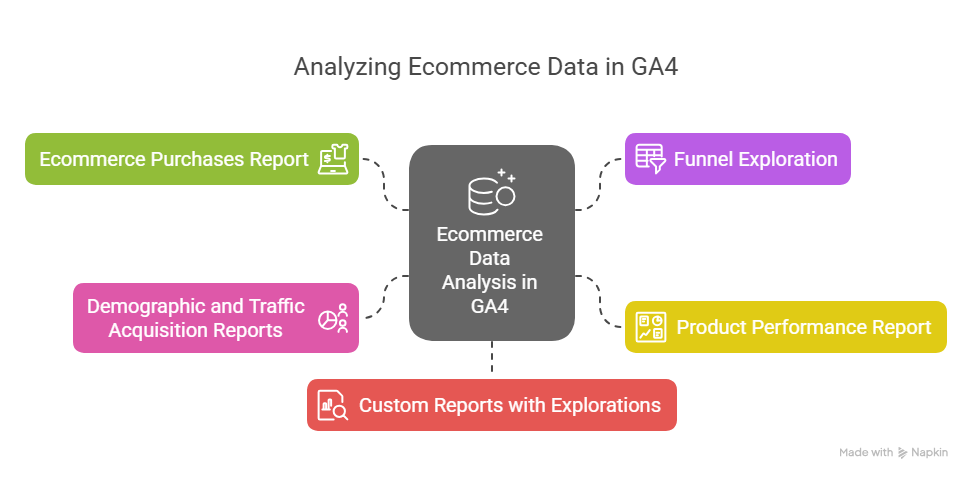
1. Ecommerce Purchases Report
- Location: open Ecommerce purchases in Reports. It may appear under Monetization in the Life cycle collection.
- Insights: compare item quantities and item revenue by product. Item revenue excludes tax and shipping. Do not label items purchased divided by items viewed as a user conversion rate; the numerator and denominator must match the question.
- Actionable use: investigate products with weak performance after checking tracking coverage, availability and the comparison period. Confirm stock and margin before changing inventory.
2. Funnel Exploration
- Location: Explore > Funnel Exploration
- Insights: Create a funnel to visualize the customer journey (e.g., view_item > add_to_cart > begin_checkout > purchase). Identify drop-off points, such as a high abandonment rate at checkout.
- Actionable use: investigate the largest measured drop-off, verify the events, then test a specific checkout change. The funnel alone does not identify why a shopper left.
3. Product Performance Analysis
- Location: use Ecommerce purchases or a deliberately configured exploration. “Product performance” here names an analysis task, not a separate guaranteed default report.
- Insights: compare measured item activity across categories or brands when the corresponding attributes are populated. Check that the dimensions and metrics use compatible scopes.
- Actionable Use: Promote best-sellers in marketing campaigns or bundle low-performing products with popular ones.
4. Demographic and Traffic Acquisition Reports
- Location: look for Demographic details and Traffic acquisition in the published Reports navigation. Their placement can differ between collections.
- Insights: compare available audience and acquisition dimensions. Demographic rows may be limited by data thresholds; a missing group is not evidence that no customers belong to it.
- Actionable use: start with sufficiently populated channel comparisons. Avoid detailed demographic conclusions from small or incomplete groups.
5. Custom Reports with Explorations
- Location: Explore > Create a new exploration
- Insights: Build custom reports to analyze specific metrics, such as revenue by marketing campaign or user retention by product category.
- Actionable use: compare outcomes by campaign with consistent attribution and cost definitions. Revenue alone is not ROI or profit.
Leveraging Ecommerce Analytics for Growth
With GA4’s insights, businesses can implement data-driven strategies to enhance performance. Here are some practical applications:
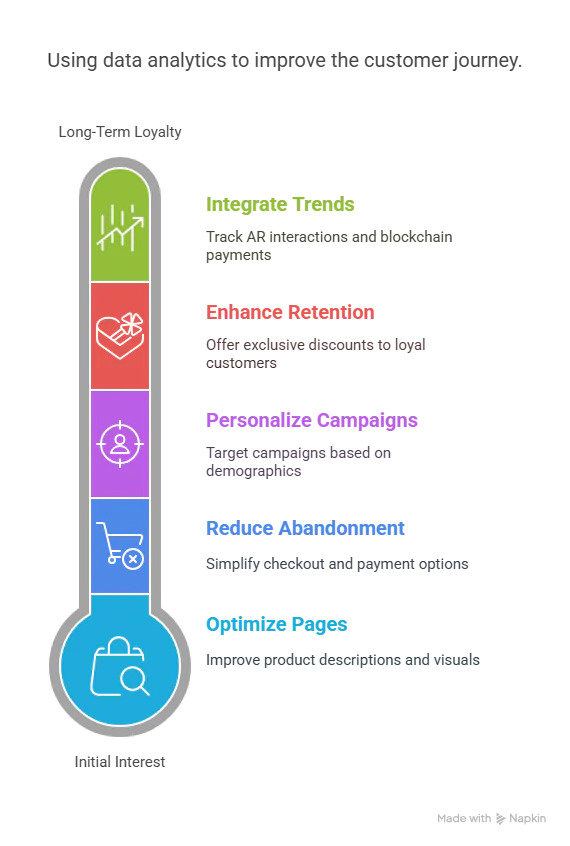
1. Optimize Product Pages
Use product data to shortlist pages for investigation, then inspect descriptions, stock, shipping information and usability. Define the experiment, primary outcome and comparison period before changing the page; a higher observed rate after an edit does not by itself establish causation.
2. Reduce Cart Abandonment
Use a funnel to locate a measured drop-off, then check checkout errors, payment failures and user feedback. Test a concrete change such as clearer shipping costs or a shorter form. Keep the tracking definition unchanged during the comparison so a measurement change is not mistaken for a sales improvement.
3. Personalize Marketing Campaigns
Build campaign hypotheses from sufficiently populated, consent-appropriate behavior groups. Compare a defined offer or creative against a control where practical, and evaluate confirmed orders rather than assuming that a demographic group prefers a particular channel.
4. Enhance Customer Retention
Define a repeat-purchase window and compare cohorts with equal follow-up time. Reconcile purchase history with authorized store records before designing a retention offer. A subscription is a business model to evaluate against demand, margin and cancellation behavior, not a guaranteed retention improvement. For a worked comparison and planning template, use the repeat-purchase test worksheet in our Vietnam customer-retention guide.
5. Integrate with Emerging Trends
For a new feature such as a virtual try-on, define the interaction event and the outcome before launch. Separate use of the feature from later purchases, and test whether any difference remains after accounting for traffic mix and measurement coverage.
Challenges and Limitations of GA4 Ecommerce Tracking
While GA4 is powerful, it has some limitations:
- Historical comparability: retain dated exports and document definition changes when comparing an older analytics system with GA4. Do not splice differently defined metrics into one continuous trend.
- Implementation dependency: a data layer, consent controls and tags need coordinated ownership. Reporting cannot recover an order that the implementation never captured correctly.
- Reporting scope: GA4 has a prebuilt Ecommerce purchases report. Use explorations for additional questions, while keeping item, event and user metrics distinct.
- Processing and coverage: reporting is not an immediate, complete accounting ledger. Check freshness, consent effects and instrumentation gaps before interpreting a missing order.
An export or dashboard can help reconcile data, but it will not repair incorrect events. First establish trustworthy definitions and source records, then choose the analysis tool. Keep costs, refunds and taxes visible when interpreting business results.
Best Practices for Ecommerce Analytics
To maximize the value of ecommerce analytics with GA4, follow these best practices:
- Define Clear KPIs: Focus on metrics like conversion rate, average order value, and customer lifetime value (LTV) to align analytics with business goals.
- Regularly Audit Tracking: Use GTM’s Preview mode and GA4’s DebugView to ensure events are firing correctly.
- Respect collection boundaries: exclude names, email addresses and other identifying form contents from analytics payloads. Test the approved consent choices and do not treat a newsletter signup as permission for every advertising use.
- Reconcile sources: align dates, attribution and definitions when comparing analytics with CRM or store data. Avoid sending customer contact details into analytics as join keys.
- Separate market and site data: GA4 measures your instrumented property. For marketplace context, use the report comparison worksheet to document differences in coverage and sales definitions.
Conclusion
Reliable ecommerce analytics starts with an agreed event definition and a confirmed business action. Use one sender, validate the payload, respect consent choices and reconcile a controlled sample before making decisions from a dashboard. GA4 can support analysis; it does not replace the order system or establish the cause of a change in sales.
Maintain the event specification and repeat the worksheet checks after changes to checkout, plugins, tags or consent settings. Keep a dated record of what was tested and what remains uncertain so the next analyst can distinguish a business change from a tracking change.
Leave a Reply